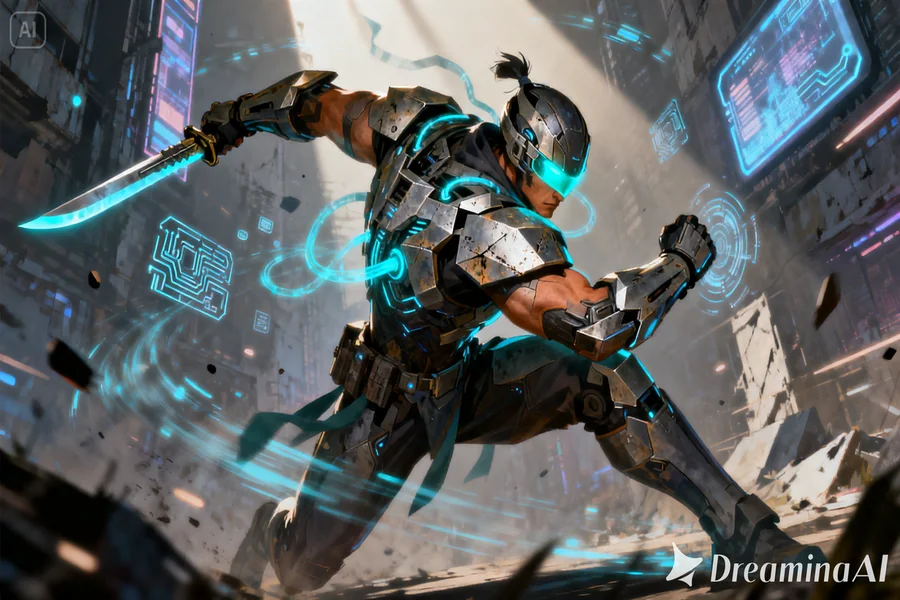
Concept art is built to carry personality — a pose that hints at attitude, a costume detail that suggests backstory, a color palette that sets the tone before a single word of dialogue exists. All of that groundwork is still locked inside a static image, though, and concept art rarely gets the chance to actually demonstrate the character it’s describing. Image to video tools change that, taking a piece of concept art and letting the character step into motion for the first time. Dreamina, running on its most advanced video generation model, Seedance 2.5, gives game designers, writers, and artists a direct path from concept to a moving character reveal.
Why concept art was always building toward motion
A concept artist spends enormous effort suggesting movement through a single pose — the tension in a stance, the way a cape might fall, the implied weight of an object being held. All of that detail is really just a promise that the character will eventually move, and animating the piece is what finally delivers on it, turning implied motion into something a viewer can actually watch happen.
What makes a character video feel like a genuine reveal
A handful of things separate a compelling character animation from something that feels like a stiff photo brought halfway to life. The motion should match the personality already suggested by the pose — confident, cautious, aggressive. Costume and prop details need to move the way their actual materials would. And the pacing should feel like a deliberate reveal rather than a quick, throwaway loop.
Bringing your concept art to life with Dreamina
Step 1: Upload your art and describe the reveal
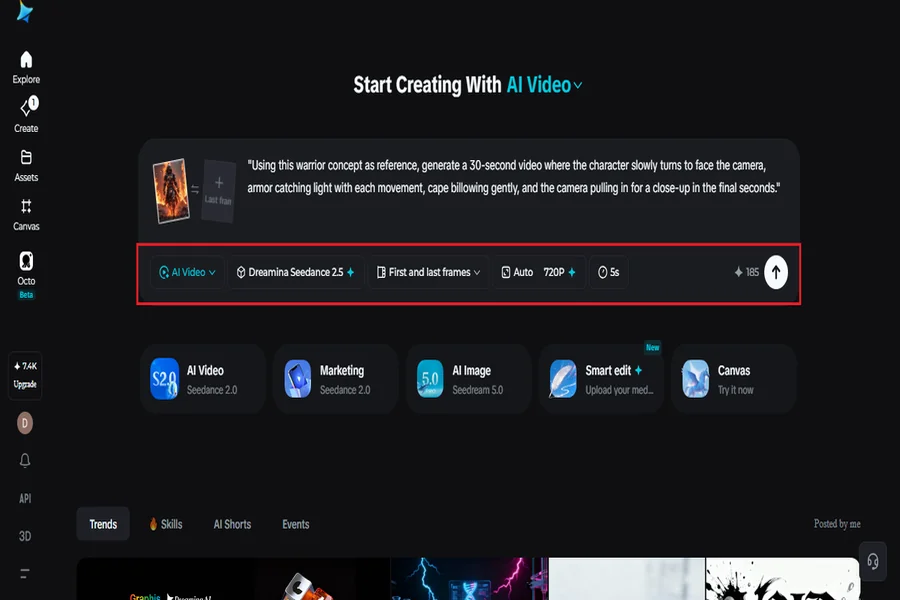
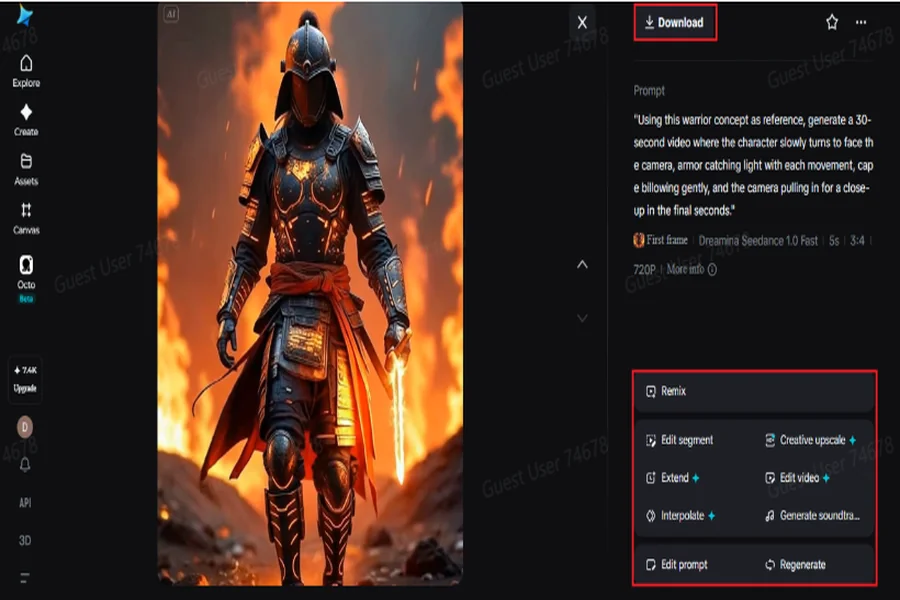
Open Dreamina and head to the “AI Video” section, then use “Add reference image” to bring in your concept art. From there, describe the motion and mood you want.
Here’s an example for a 30-second clip: “Using this warrior concept as reference, generate a 30-second video where the character slowly turns to face the camera, armour catching light with each movement, cape billowing gently, and the camera pulling in for a close-up in the final seconds.”
Step 2: Generate with Seedance 2.5
Pick the Seedance 2.5 model, choose your video length, then select an aspect ratio — 16:9 for a portfolio reel or trailer, 9:16 for social reveals. Tap Dreamina’s generate icon and let the character take shape.
Step 3: Refine and export the finished reveal
Run it through Dreamina’s editing tools first. Upscale sharpens fine detail on armour and linework, Generate Soundtrack lays down a dramatic or ambient score, then export and share your character with the world.
What Seedance 2.5 brings to character motion
Seedance 2.5, Dreamina’s most advanced video generation model, is especially suited to the consistency and detail character work depends on.
A character that stays recognisably itself
Reference handling preserves exact proportions, features, and design details, which matters enormously, since any drift instantly breaks the illusion for a character meant to be instantly recognisable.
No unwanted duplicates mid-reveal
Fixes for the recurring “twin” issue keep a single character from splitting into look-alike duplicates during a turn or pose change.
Reading complex poses and interactions
The model can interpret richer references, including blockout data, which is especially useful for capturing precise movement paths that are hard to describe in text alone.
Room for a full character beat
Extended duration up to 180 seconds in Ultra-long mode allows a character to move through a complete beat rather than a single fleeting gesture.
Deciding how much personality to reveal at once
A character reveal doesn’t need to show everything in one clip. Often the strongest results come from choosing a single defining gesture, a slow turn, a hand resting on a weapon, a subtle glance, rather than trying to cram an entire personality into thirty seconds. Holding back slightly tends to build more curiosity than a fully detailed performance would.
Approach concept art with multiple characters on one sheet
Sometimes concept sheets depict a character from different angles or even have a second character next to the first one, and animation of such sheets will differ from that of a sheet of a single character. It is always a good idea to make one character the main one and mention other characters as supporting ones or even just motion in the background. Concept sheets that feature one definite main character result in good videos where several characters do not fight for viewer’s attention.
Writing prompts that respect the design
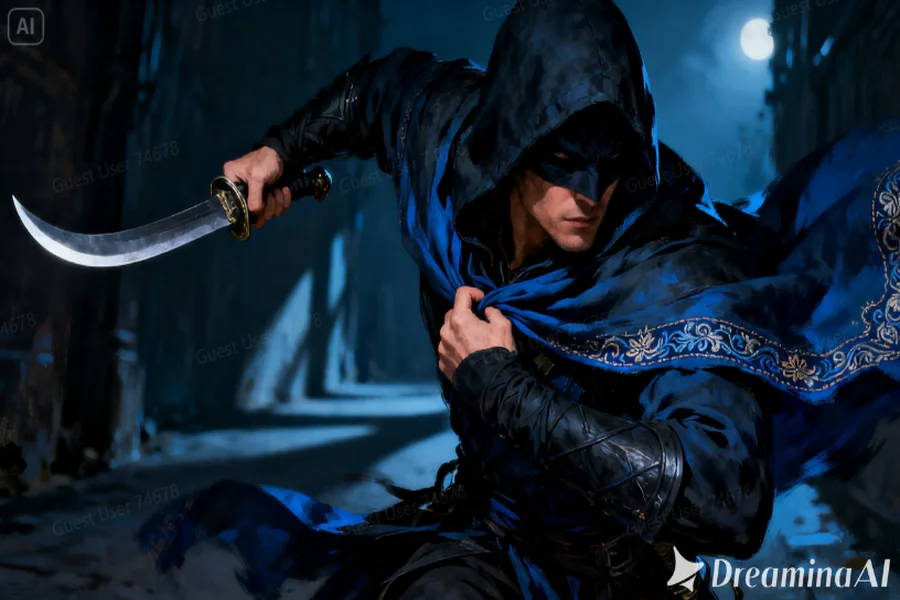
Naming specific materials and how they should move, metal, cloth, leather, keeps the animation consistent with how the character was actually designed, rather than defaulting to generic movement that doesn’t match the concept.
Choosing the right pace for the character
A slower, more deliberate pace suits a serious or intimidating character, while a slightly quicker pace can work better for someone whose personality is more energetic or mischievous.
A few habits that weaken a character video
Some choices tend to undercut the result:
-
Overcomplicating the prompt with too many actions happening at once
-
Choosing a background that competes visually with the character
-
Ignoring lighting direction, which can make the character look disconnected from the scene
-
Skipping detail on materials, leading to props or armor that move unrealistically
Where these character videos tend to be used
Game trailers, animated pitch decks, character portfolios, and social reveals for original IP are where this format shows up most, since a character that moves tends to generate far more interest than one that only ever appears in still art on a page.
Concept art was always a story waiting for somewhere to move. Seedance 2.5, running through Dreamina, is what finally lets that character step off the page and into a scene worth watching.